App guides
Add WakeUp Widgets, Live Activities and StandBy to Your iPhone
WakeUp 2day can show your next alarm, last night’s sleep, the weather and running timers without you opening the app. Add its widgets to the Home Screen, Lock Screen or StandBy from the iOS widget gallery, and follow alarms, timers, the stopwatch and sleep tracking as Live Activities in the Dynamic Island.
Key takeaways
- Add WakeUp widgets from the iOS widget gallery: search for WakeUp, then pick a widget and a size.
- Most widgets are free; widgets with AI content need WakeUp Pro and Apple Intelligence.
- Alarms, timers, the stopwatch and sleep tracking appear as Live Activities in the Dynamic Island.
- The Sleep Tracking widget opens WakeUp and starts a night or a nap with one tap.
- For the gradual volume ramp, keep WakeUp open in Nightstand mode rather than relying on StandBy.
What widgets and Live Activities do, and what you need
Widgets answer quick questions at a glance: when does my alarm ring, how did I sleep, is it raining. Some also act. Sleep Tracking starts a night with one tap, and Home Controls switches smart lights and climate. Live Activities show what is running right now, with controls on the Lock Screen and in the Dynamic Island.
You need WakeUp on an iPhone with iOS 17 or later. Most widgets are free. Widgets with AI content rely on WakeUp Pro’s AI features, which need iOS 26 or later on a device with Apple Intelligence turned on. Weather widgets need location access, and some widgets need something connected first: a CO₂ sensor, smart lights, a smart lock or Apple Health.
Which WakeUp widgets are available?
These are the main ones, named as they appear in the widget gallery.
| Widget | Shows or does | Where |
|---|---|---|
| WakeUp | Your next alarm | Home Screen, Lock Screen |
| Sleep | Last night’s sleep score and duration | Home Screen, Lock Screen |
| Sleep Metric | One metric you choose, such as Sleep Score, Snores or Avg Heart Rate | Lock Screen |
| Sleep Tracking | Starts a night or a nap; the medium size also starts Nightstand mode | Home Screen |
| Timer, Stopwatch | Your running timer or stopwatch | Home Screen, Lock Screen |
| Weather & Clock, Analog Clock, Weather, Weather Now | The time and current weather | Home Screen, Lock Screen (Weather Now: Lock Screen only) |
| CO₂ Monitor | Your bedroom CO₂ level | Home Screen, Lock Screen |
| Blood Oxygen, Wrist Temperature | Your latest readings from Apple Health | Home Screen, Lock Screen |
| Home Controls, Smart Lock | Switch lights and climate; control and monitor a smart lock | Home Screen (Smart Lock also on the Lock Screen) |
| AI Assistant, AI Tip, Weather Intelligence Forecast | AI weather insights and quick access to the assistant (WakeUp Pro) | Home Screen, Lock Screen |
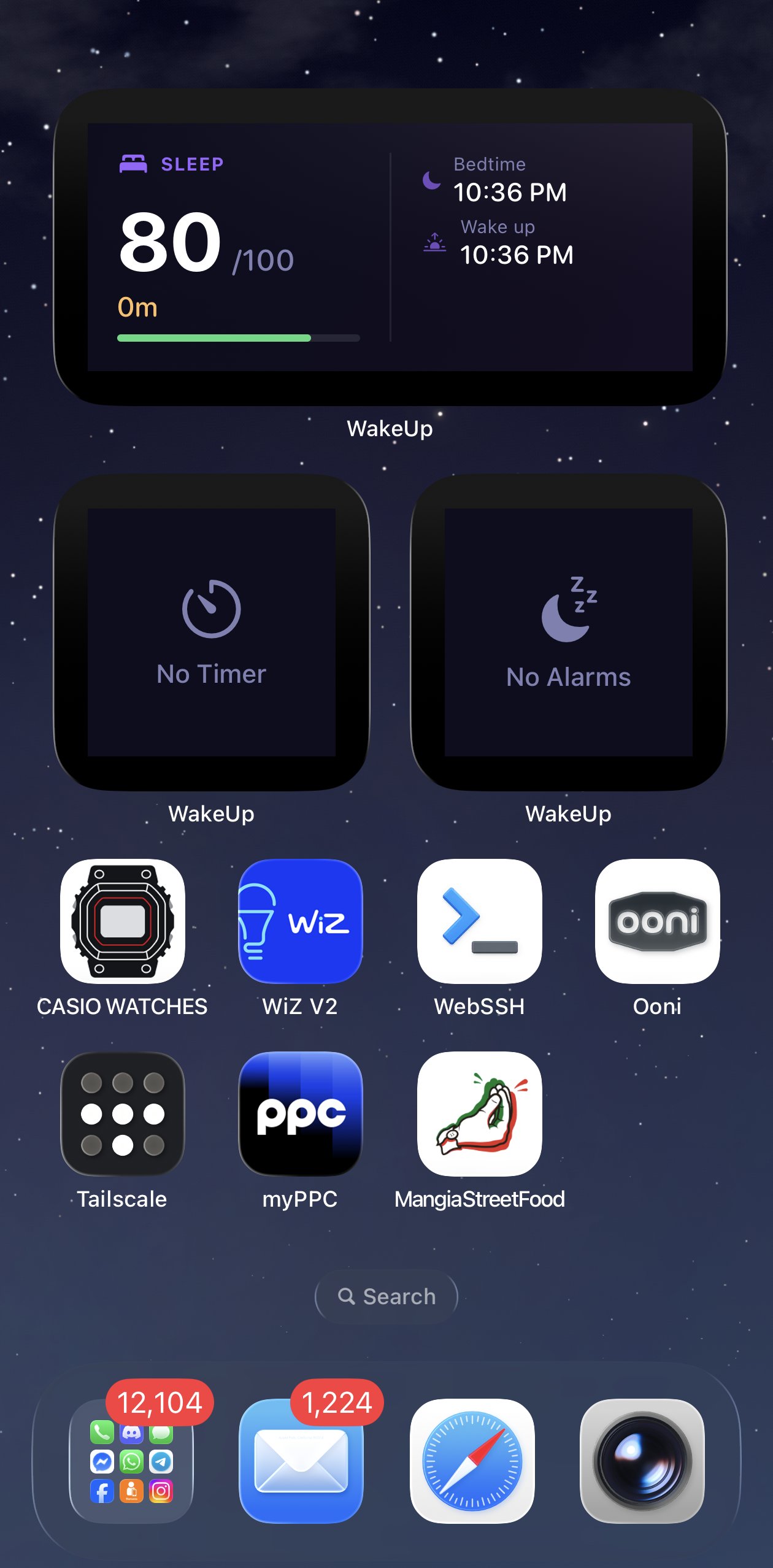
How to add WakeUp widgets
- Open the widget gallery. Touch and hold an empty area of the Home Screen until the apps jiggle, then tap Edit and Add Widget. On iOS 17, tap the + button instead.
- Find WakeUp. Search for WakeUp, then swipe through its widgets and sizes.
- Add the widget. Tap Add Widget, drag it into place and tap Done.
- Add Lock Screen widgets. Touch and hold the Lock Screen, tap Customize and choose the Lock Screen. Tap the widget area below the time, or the line above it for an inline widget, and pick WakeUp widgets.
- Allow Live Activities. In the iOS Settings app, open WakeUp and make sure Live Activities is on.
- Set up StandBy. Charge your iPhone on its side while it is locked, go to the widget view, touch and hold a widget stack to edit it, and add WakeUp widgets.
Sleep Metric is configurable: while customizing the Lock Screen, tap it to choose Sleep Score, Sleep Time, Snores, Coughs, Sneezes, Wake-ups or Avg Heart Rate.
Live Activities and the Dynamic Island
Alarms, timers, the stopwatch and sleep tracking appear in the Dynamic Island while they are active, and timers and the stopwatch also show on the Lock Screen. On iPhones without a Dynamic Island, Live Activities appear on the Lock Screen instead.
Touch and hold the Dynamic Island to expand it for details and controls, and swipe from either side toward the center to collapse it. In the expanded view you can pause, resume and stop timers and record stopwatch laps. Alarm and sleep actions open the app.
Using WakeUp with StandBy
StandBy turns a charging iPhone resting on its side into a full-screen display, and its widget view uses small Home Screen widgets. A stack with the WakeUp next-alarm widget, Weather & Clock and Sleep makes a simple bedside display.
StandBy isn’t the same as WakeUp’s Nightstand mode, which keeps WakeUp open with a dim clock in one of 9 designs, an alarm countdown and the weather. The difference matters for one setting: the gradual volume ramp works only when WakeUp is open on screen as the alarm rings, while an alarm that rings on the Lock Screen is played by iOS at full volume. If you rely on the ramp, use Nightstand mode. Using your iPhone as a bedside clock compares the options.
Start tracking from the Sleep Tracking widget
The Sleep Tracking widget starts a night or a nap with one tap, and its medium size also starts Nightstand mode. Tapping it opens WakeUp and begins tracking, so set the phone down on the nightstand, ideally charging, with the microphone unobstructed. Tracking your sleep with just an iPhone covers placement. From bed, “Good night WakeUp” to Siri does the same.
Tips and troubleshooting
- A widget shows old information. iOS decides when widgets refresh, so a value can lag behind the app. Opening WakeUp usually brings them up to date.
- Weather widgets are empty. Allow location for WakeUp; it uses your location to show local weather on widgets.
- Blood Oxygen or Wrist Temperature is blank. These need Apple Health connected and a device that records the readings, such as Apple Watch. See connecting Apple Health and your wearable.
- CO₂ Monitor is blank. Choose a sensor in Settings > Sleep & Health > Air Quality first, as described in monitoring bedroom CO₂.
- Home Controls or Smart Lock is blank. Connect lights, climate or a lock in Settings > Smart Home. Automating locks and climate walks through the options.
- No Live Activity appears. Check that Live Activities is on for WakeUp in the iOS Settings app.
- StandBy doesn’t start. The iPhone needs to be charging, locked and on its side, with StandBy turned on in the iOS Settings app.
Where to start
Add the WakeUp widget to your Lock Screen so tomorrow’s alarm is always one glance away, put Sleep Tracking on your Home Screen as a bedtime button, and start a timer once to see its Live Activity at work.
Frequently asked questions
Can I see my next alarm on the iPhone Lock Screen?
Yes. Add the WakeUp widget to your Lock Screen: touch and hold the Lock Screen, tap Customize, choose the Lock Screen, then tap the widget area and pick WakeUp. It comes in circular, rectangular and inline styles and shows your next alarm, so you can check it at a glance without opening the app.
Why is my WakeUp widget showing old information?
iOS decides when widgets refresh, so a value on the Home Screen or Lock Screen can lag behind the app for a while. Opening WakeUp usually brings them up to date. If a weather widget stays empty, check that WakeUp has location access, and for health widgets check that Apple Health is connected.
Does WakeUp work with StandBy?
Yes. StandBy shows small Home Screen widgets while your iPhone charges on its side, so WakeUp’s next-alarm, clock, weather and sleep widgets fit there. If you want a dedicated bedside clock with an alarm countdown and dimming, WakeUp’s Nightstand mode is the alternative, and it keeps the app open so the gradual volume ramp works.
Which WakeUp widgets need WakeUp Pro?
Widgets with AI content, such as AI Assistant, AI Tip and the AI insight in Weather Intelligence Forecast, rely on WakeUp Pro’s AI features, which also need iOS 26 or later and Apple Intelligence. The alarm, clock, weather, timer, sleep, CO₂ and blood oxygen widgets need no subscription, though some need a sensor or Apple Health connected first.