App guides
Connect Apple Health and Your Garmin, Oura or Withings Wearable
WakeUp 2day doesn’t pair with wearables directly. It reads from Apple Health, so any device whose app writes to Health, including Apple Watch, Garmin, Oura, Withings, Ultrahuman, Huawei and Zepp/Amazfit, can add sleep stages, heart rate, HRV, blood oxygen and wrist temperature to your nights in WakeUp.
Key takeaways
- WakeUp doesn’t pair with wearables directly: any device whose app writes to Apple Health works.
- Turn on Health Integration in Settings > Sleep & Health > Apple Health.
- Apple Health sleep stages come first; WakeUp’s own algorithm fills in when there are none.
- WakeUp writes the nights and naps you track back to Apple Health as sleep with stages.
- If something is missing, check that your wearable’s app has synced to Apple Health first.
How WakeUp works with your wearable
Apple Health is the hub. Your wearable’s own app copies its measurements into Health, and WakeUp reads them from there with your permission. WakeUp also writes back: the nights and naps you track in WakeUp are saved to Apple Health as sleep with its stages.
This is for anyone who already wears a tracker and wants alarms, sleep reports and Smart Wake in one place, and for Apple Watch owners who track with both. None of it is required. WakeUp can track sleep with just an iPhone; a wearable adds heart signals on top.
What you need
- An iPhone with WakeUp and the Health app. Connecting Apple Health is free; weekly sleep summaries and advanced sleep graphs are part of WakeUp Pro.
- A wearable whose companion app can sync to Apple Health, with that sync turned on.
- Permission for WakeUp to read the data you care about and to write sleep.
How to connect Apple Health and your wearable
- Connect your wearable to Apple Health. In the wearable’s own app, find its Apple Health connection, turn it on and allow the data you want to share, such as sleep, heart rate, HRV and blood oxygen. Each brand shares a different set.
- Check the Health app. Open Health and make sure recent sleep and heart data from your device are there. If it isn’t in Health, WakeUp can’t see it.
- Turn on Health Integration. In WakeUp, go to Settings > Sleep & Health > Apple Health and switch on Health Integration.
- Allow access. In the Apple Health permission sheet, allow WakeUp to read the categories you want and to write sleep.
- Choose the stage source. Under Sleep Data Priority, keep Apple Health sleep stages (when available) to use your wearable’s stages first, or choose App algorithm to prefer WakeUp’s own.
- Sync. Tap Sync from Apple Health to bring in recent history. Your latest values, such as Last Heart Rate and Last Blood Oxygen, then appear in the same section.
What does WakeUp read and write?
| From Apple Health | Where you see it in WakeUp |
|---|---|
| Sleep stages | The night’s phase chart and score, used ahead of WakeUp’s own estimate |
| Heart rate | Sleep reports; Apple Watch heart rate also helps Smart Wake |
| HRV (SDNN) | Next to your sleep reports |
| Blood oxygen (SpO₂) | Sleep reports, calendar, trend charts, the Blood Oxygen widget and the sleep apnea risk estimate |
| Wrist temperature | Sleep trends, from Apple Watch |
| Steps and activity | The previous day’s activity next to your sleep report |
| Breathing Disturbances | Apple Watch’s value for the same night, next to the apnea risk estimate |
On the iPhone, WakeUp writes one thing: the nights and naps you track in WakeUp, as sleep with its stages. Health data stays in Apple Health; WakeUp keeps only what it shows with each night, such as stages and average heart rate, plus the latest values for its widgets. Settings › Your Data & Privacy lists the full set. To change permissions later, open the Health app and go to your profile, then Apps, then WakeUp.
Apple Watch calibration
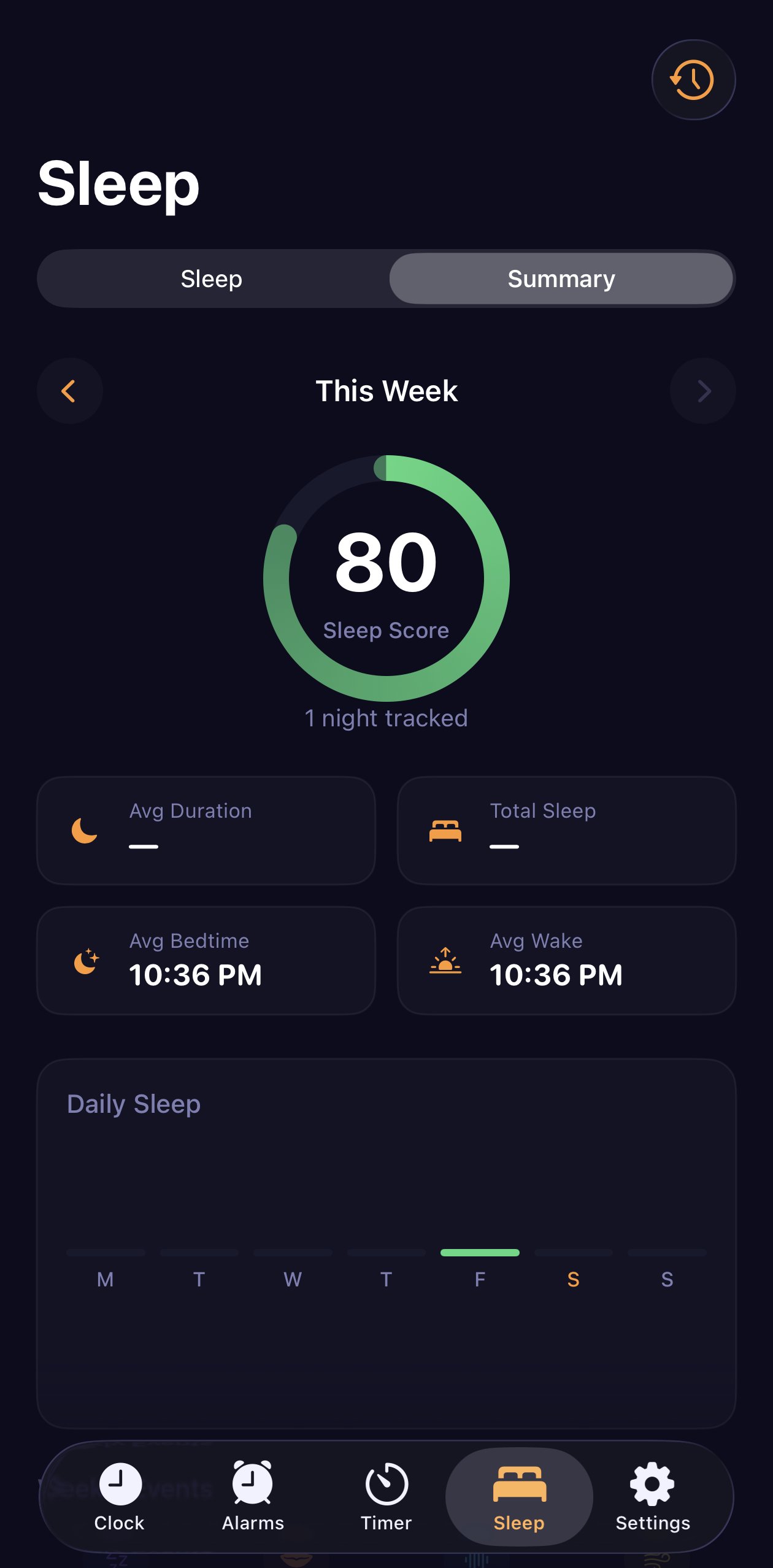
If you own an Apple Watch, wear it to bed while WakeUp tracks on your iPhone. On nights with both, WakeUp learns to match its own sleep stages to your Watch’s. That matters on nights the Watch stays on the charger, when WakeUp’s own estimate is the one you see. Settings > Sleep & Health > Apple Health shows how many nights were calibrated. To track directly on your wrist instead, see the WakeUp Apple Watch app guide.
Tips for cleaner data
- Let your wearable sync in the morning. Companion apps often send data to Health only when they sync, so opening the app helps. When stages arrive after the night has ended, WakeUp can update the report and tell you it was enriched with Apple Health sleep stages.
- Pick one main device. Two wearables recording the same night can disagree. Use the one you wear most consistently.
- Read trends, not single nights. Consumer trackers estimate sleep from movement and heart signals rather than brain activity, and their stage estimates are less reliable than total sleep time.1 How accurate sleep trackers are goes deeper, and what HRV tells you about sleep explains why your own baseline matters most.
Troubleshooting
- “No Apple Health sleep stage data available for this night.” Your wearable hadn’t synced yet, or it doesn’t share stages with Health. Open its app, then tap Sync from Apple Health in WakeUp.
- A value never appears. Your device may not record it or share it with Health, or WakeUp’s read access for it is off. Check the Health app under your profile, then Apps, then WakeUp.
- “Sleep write access is off in Health.” WakeUp can’t save your tracked nights to Health until you enable it in Health, under your profile, then Apps.
- No Apple Watch value next to the apnea estimate. If you connected Apple Health before this feature arrived, tap Compare with Apple Watch once to allow it. Understanding the sleep apnea risk estimate explains both numbers; neither is a diagnosis.
- “Health Not Available.” Apple Health isn’t available on this device, so WakeUp relies on its own tracking.
Where to start
Tonight, make sure your wearable’s app has synced to Health, turn on Health Integration in WakeUp, and track as usual. Tomorrow, open the night’s report: the score breakdown notes when its sleep stages were imported from Apple Health, with heart rate and the other vitals alongside.
Frequently asked questions
Does WakeUp 2day work with Garmin or Oura?
Yes, through Apple Health. WakeUp doesn’t pair with wearables directly. If your Garmin, Oura, Withings, Ultrahuman, Huawei or Zepp/Amazfit app writes data to Apple Health, WakeUp can read it once you allow access. What appears depends on what each device’s app shares with Health, so check its sync settings first.
Do I need an Apple Watch to see sleep stages?
No. With just an iPhone, WakeUp estimates Light, Deep, REM and Awake stages on the device from movement and sound, adding heart rate when Apple Health has it. If a wearable writes sleep stages to Apple Health, WakeUp uses those first for that night. An Apple Watch also lets WakeUp calibrate its own stages to the Watch’s.
Does WakeUp send my health data anywhere?
No. Health data stays in Apple Health, and WakeUp keeps only what it shows with each night, such as stages and average heart rate, plus the latest values for its widgets. WakeUp has no account and nothing is sent to the developer. Settings › Your Data & Privacy lists exactly what it reads from and writes to Apple Health.
How do I stop WakeUp from reading my health data?
Open the Health app, go to your profile, then Apps, then WakeUp, and turn off the categories you no longer want to share. You can also switch off Health Integration in WakeUp under Settings > Sleep & Health > Apple Health. Sleep tracking keeps working with your iPhone’s own sensors either way.
Sources
- Depner CM, et al. Wearable technologies for developing sleep and circadian biomarkers: a summary of workshop discussions. Sleep, 2020. doi.org/10.1093/sleep/zsz254
This article is for general information only and is not medical advice. WakeUp 2day is not a medical device and does not diagnose, treat or prevent any condition. If you are worried about your sleep or your health, talk to a doctor.