App guides
How to Track Your Sleep With Just an iPhone
You do not need a wearable to track your sleep. With WakeUp 2day, an iPhone on your nightstand listens for sounds like snoring and coughing, notes movement and wake-ups, and estimates Light, Deep, REM and Awake stages, all on the device. Set it up once, tap Start Sleep, and read the report in the morning.
Key takeaways
- WakeUp tracks sleep with just an iPhone on the nightstand; no wearable is required.
- Keep the microphone unobstructed and the phone on a charger if you can.
- Sound is analyzed on the iPhone to detect snoring, talking, coughing and six other kinds of events.
- The report shows a 0–100 score, Light, Deep, REM and Awake stages, an event timeline and the recording.
- A wearable adds heart data, and sleep stages in Apple Health, such as Apple Watch’s, are used first.
What can an iPhone track on its own?
WakeUp uses the iPhone’s microphone and Apple’s on-device sound analysis to recognize nine kinds of events: snoring, coughing, talking, sneezing, crying, knocking, sirens, other loud sounds, and movement or wake-ups. From motion and sound it estimates your sleep stages and gives the night a sleep score from 0 to 100.
That suits anyone who would rather not wear anything to bed, and snorers who want to hear what actually happens at night. Tracking and nightly reports are free; WakeUp Pro adds weekly summaries, advanced graphs and AI coaching. For what the stages mean, see sleep stages explained.
What you need for your first night
- An iPhone with iOS 17 or later and WakeUp 2day installed.
- Microphone access. Without it, snoring and other sounds are not detected, although movement is still tracked.
- A charger by the bed. Tracking uses the microphone and motion sensors for hours, so charging is recommended.
- A spot on the nightstand close to your bed, where nothing covers the microphone.
How to track your first night
- When WakeUp asks, allow the microphone so it can detect snoring and other sleep sounds.
- Put the iPhone on your nightstand with the microphone unobstructed, ideally on its charger.
- Tap Start Sleep at the top of the Clock tab or Start Sleep Tracking on the Sleep tab, or say “Good night WakeUp”. If the phone is not charging, WakeUp may suggest connecting a charger; Start Anyway skips that.
- Sleep as usual. The screen dims to the nightstand clock, and your sleep sounds start, if you use them.
- In the morning, dismissing a WakeUp alarm ends tracking and opens the report. If you wake without an alarm, tap Stop Tracking, then Stop & Save, or say “Good morning WakeUp”.
- Open the night’s report to see your score, stages, events and recording.
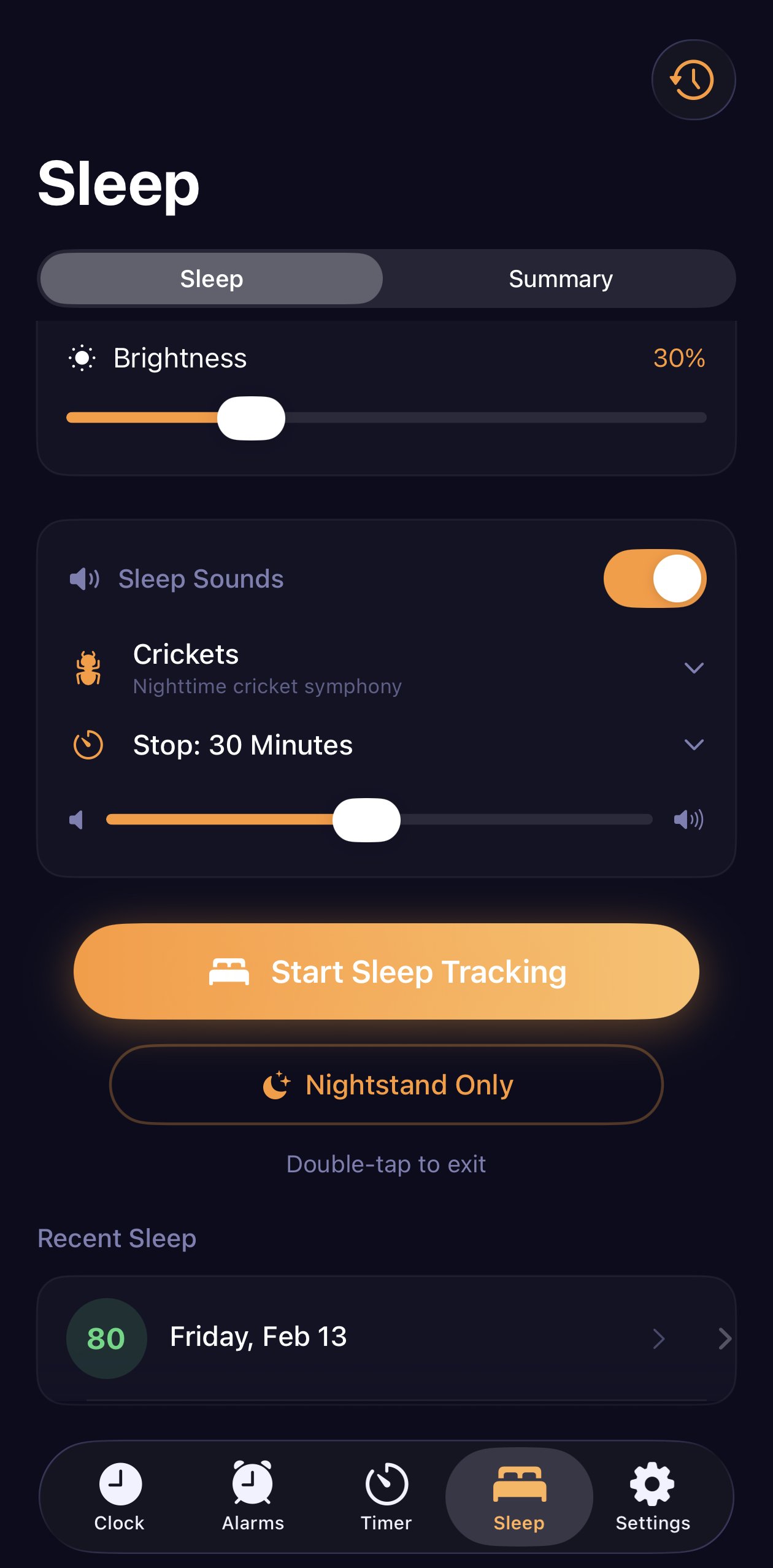
For your first nights, the Sleep tab notes that the sleep algorithm is still calibrating, so give it several nights before judging the results. The Sleep Tracking widget can also start a night with one tap.
How to read your sleep report
- Sleep score (0–100). Once you have a few nights, it is scored against your own recent averages, so compare it with your other nights, not with anyone else’s.
- Duration and efficiency. How long you slept, and how much of your time in bed was sleep.
- Stages. A phase chart of Light, Deep, REM and Awake. Treat exact minutes as estimates; how accurate sleep trackers are explains why.
- Event timeline. Each detected sound or wake-up, placed on the night.
- Recording. Play back the night, jump to an event, or tap an event to play it and share the clip as an audio file.
The report also carries a sleep apnea risk estimate, which is not a medical diagnosis. If you snore, the counts and clips are the most useful part; why people snore and how to track it shows how to test changes one at a time. A morning summary notification gives your time asleep, score and snoring, and once you have at least five nights the Sleep tab adds plain-language insights such as your average against your goal.
How to track a nap
Tap Start Nap on the Sleep tab or the Clock tab, or say “Start a nap in WakeUp”. Naps get their own report but stay out of your nightly averages, sleep debt and Last Night. A nap left running through the night is saved as a night. For timing and length, see how long a power nap should be.
Tips for couples, pets, noise and battery
- Sharing a bed. The phone hears the whole room, so a partner’s snoring or talking can land in your timeline. Keep the phone on your side, and play a clip if you are unsure whose snore it was.
- Pets. An animal moving around at night can add sounds too, so do not read much into a single isolated event.
- Fans and purifiers. Steady background noise can make quiet sounds harder to pick out, so keep noisy devices away from the phone.
- Heat and battery. If the phone runs warm, turn on Reduce heat (fewer visual effects) on the Sleep tab. Full-night recording is skipped in Low Power Mode, on low battery or when the phone runs warm, but sounds are still detected, and each report shows the battery the night used.
- Privacy. Sound is analyzed on your iPhone and there is no account. Keep Recordings in Settings > Backup & Storage can delete full-night recordings after 7 days, 30 days, 90 days or 1 year. More in what happens to your sleep data.
What does a wearable add?
A wearable adds heart signals. WakeUp reads heart rate, HRV, blood oxygen and wrist temperature from Apple Health, and when Apple Health has sleep stages for the night, for example from an Apple Watch, WakeUp uses those first. On nights tracked with both, it calibrates its own stages to your Watch. Anything that writes to Apple Health works, including Garmin, Oura and Withings; see how to connect Apple Health and your wearable.
Where to start tonight
Allow the microphone, put the phone on the charger at your bedside, and tap Start Sleep when you turn off the light. Tomorrow, look at the timeline and listen to one or two events before you worry about the score. After a week, the averages and insights start to mean something.
Frequently asked questions
Can my iPhone track sleep without an Apple Watch?
Yes. An app like WakeUp 2day can track a night with only the iPhone on your nightstand. It listens for sounds such as snoring, coughing and talking, notes movement and wake-ups, and estimates Light, Deep, REM and Awake stages on the device. A wearable adds heart signals, but it is not required.
Where should I put my iPhone to track my sleep?
On the nightstand, close to your bed, with the microphone unobstructed and ideally on a charger. Do not bury it under a pillow or put it in a drawer, because the microphone needs to hear the room. If the phone is not charging when you start, WakeUp may suggest connecting a charger, and each report shows how much battery the night used.
Does sleep tracking drain the iPhone battery?
It uses the microphone and motion sensors for hours, so it does use battery, which is why charging overnight is recommended. Each report shows the battery used or that the phone was charging. If the phone runs warm, the Reduce heat switch cuts visual effects. Full-night recording is skipped on low battery, in Low Power Mode or when the phone is warm, but sounds are still detected.
Is it safe to record audio while I sleep?
In WakeUp, sound is analyzed on your iPhone, there is no account, and nothing is sent to the developer. If you would rather not keep audio for long, Keep Recordings can delete full-night recordings automatically after 7 days, 30 days, 90 days or 1 year, while your sleep data, events and scores are kept.
This article is for general information only and is not medical advice. WakeUp 2day is not a medical device and does not diagnose, treat or prevent any condition. If you are worried about your sleep or your health, talk to a doctor.