App guides
Using WakeUp 2day on Apple Watch: Alarms, Sleep and Complications
WakeUp 2day’s free Apple Watch app puts your alarms, sleep tracking, naps, timers and weather on your wrist. Alarms stay in sync with your iPhone, a night or nap tracked on the Watch can end with a haptic Smart Wake in light sleep, and eight complications bring your next alarm or last night’s score to the watch face.
Key takeaways
- The WakeUp Apple Watch app is free, and its alarms stay in sync with WakeUp on your iPhone.
- Set an alarm’s Alert Type to Vibration for a silent wake-up on your wrist.
- Tap Start Sleep on the Watch so Smart Wake can ring early when it detects light sleep.
- Eight complications put your next alarm, sleep score, timer or weather on your watch face.
- Overnight tracking takes battery, so charge the Watch before bed instead of overnight.
What the Watch app does and who it is for
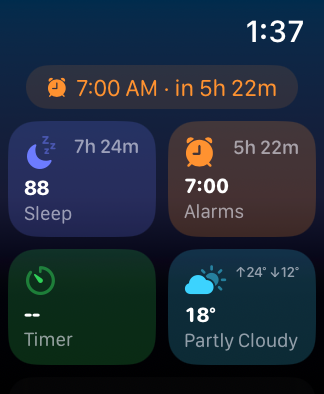
The app opens on four tiles, Sleep, Alarms, Timer and Weather, with Settings below. You can create and edit alarms, track a night or a nap, run timers with haptic alerts and check the forecast without taking out your phone.
It suits anyone who would rather be woken by the wrist than a speaker: people who want to wake up without waking a partner, heavy sleepers who want a vibration on top of a sound, and nappers who want a rest that ends on time.
What you need
- An iPhone with WakeUp (iOS 17 or later) and a paired Apple Watch.
- No subscription: the Watch app is free.
- Notifications allowed for WakeUp on the Watch, so alarms ring when the app is closed.
- Apple Health access on the Watch. WakeUp asks to read heart rate, heart rate variability and sleep, and to save sleep and workouts; an overnight workout session lets it measure through the night.
How to set up WakeUp on Apple Watch
- Open WakeUp on your Watch. If it isn’t installed yet, get it from the App Store on the Watch or from the Watch app on your iPhone. Allow notifications and Health access when asked. The home screen should say iPhone connected.
- Add an alarm. Tap Alarms, then Add Alarm. Tap the hour or the minutes, turn the Digital Crown to set the time, and add a name if you like.
- Choose how it wakes you. Pick repeat days (or Weekdays, Weekends or Daily), a sound, and an Alert Type: Sound, Vibration or Both. Turn on Snooze and Smart Wake if you want them.
- Save the alarm. Tap Save Alarm. It syncs to WakeUp on your iPhone, and alarms you create on the iPhone appear on the Watch.
- Start tracking at bedtime. Tap Sleep, then Start Sleep, and keep the Watch on overnight. For a daytime rest, tap Nap instead.
- Add a complication. Touch and hold your watch face, tap Edit, swipe to the complications, tap a slot and choose a WakeUp complication.
New alarms start from the Default Alert in the Watch app’s Settings, so if you always want a silent wrist alarm, set it to Vibration once.
Tracking sleep and naps with a haptic wake-up
Once you tap Start Sleep, the Watch shows the elapsed time, your heart rate when available and your next alarm’s Smart Wake window. Smart Wake can ring up to that window early when it detects light sleep, and the alarm screen shows how many minutes early it rang and whether light sleep, movement or heart rate triggered it. An early ring counts as that day’s alarm. How Smart Wake works covers choosing a window.
Stop Tracking asks you to confirm, so a stray tap won’t end the night. In the morning, the Sleep screen shows last night’s score, time asleep, bedtime and wake time, and after two tracked nights Trends shows your averages. Nights tracked on the Watch reach your iPhone through Apple Health.
If WakeUp is already tracking on your iPhone, the Watch shows Tracking on iPhone. Wearing the Watch while the iPhone tracks also teaches WakeUp to match its own sleep stages to your Watch’s; see connecting Apple Health and your wearable.
For a nap, tap Nap on the Sleep screen, choose a preset length or dial in your own, and leave Smart Wake on to be woken from light sleep before the time is up. Tap +5m for a little longer or Wake to finish. The power nap guide explains why shorter naps usually leave you less groggy.
Complications, timers and weather
WakeUp offers eight complications for watch faces and the Smart Stack: Next Alarm, Smart Wake, Sleep Score, Quick Actions, Sleep Sounds, Timer, Stopwatch and Weather. Quick Actions opens the Sleep screen ready to start tracking, a one-tap bedtime button. If your face has no free slot, add a WakeUp widget to the Smart Stack instead.
The Timer tile runs timers and a stopwatch with haptic alerts. Weather shows current conditions with details such as feels-like temperature, humidity and wind; it follows WakeUp’s weather setting on your iPhone.
Tips for battery and a charging routine
- Charge before bed, not overnight. Overnight tracking runs a workout session so the Watch can measure all night, and that takes battery. Top up while you get ready for bed or over breakfast.
- Wear it snugly. Smart Wake on the Watch depends on heart rate; a loose band can miss readings.
- Check that you can feel it. Test Haptics in the Watch app’s Settings plays each vibration. If you feel nothing, wear the Watch on your wrist, turn off Low Power Mode, and check Haptic Alerts under Sounds & Haptics in the Watch’s own Settings app.
- Add a get-up check. The Persistent Wakeup AI switch in the Watch app’s Settings rings follow-up alarms until you walk. It runs on your iPhone, so turn it on there once (Settings > Alarms & Wake-up) to allow Motion & Fitness. See setting up Persistent WakeUp.
Troubleshooting
- “Notifications are off.” Alarms can only ring while WakeUp is open. Turn notifications on for WakeUp in the Watch app on your iPhone.
- “Some alarms won’t ring here.” Apple Watch can hold only so many alerts, so the nearest alarms come first. Turn off alarms you don’t need.
- Smart Wake says On iPhone. That alarm rings through your iPhone, so its Smart Wake runs on the iPhone while the iPhone tracks your sleep.
- “No heart rate.” Smart Wake will ring at the alarm time, and a nap ends at the set time. Check that WakeUp may read heart rate in Apple Health and that the band sits snugly.
- Watch nights missing on the iPhone. Apple Health can’t save sleep from WakeUp. Allow Sleep for WakeUp in Health settings.
- iPhone not reachable. Keep your iPhone nearby so alarms and settings can sync.
Where to start tonight
Set tomorrow’s alarm on your wrist with Alert Type set to Both and Smart Wake on, charge the Watch while you get ready for bed, then tap Start Sleep. In the morning, note how early it rang and why, and adjust the window if it felt too early.
Frequently asked questions
Can Apple Watch wake me up with vibration only?
Yes. In the WakeUp Watch app, open an alarm and set Alert Type to Vibration, or choose Vibration as the Default Alert in the Watch app’s Settings so new alarms start that way. A wrist-only alarm works only while you wear the Watch and it has charge, so keep a sound alarm on your iPhone as a backup for important mornings.
Is the WakeUp Apple Watch app free?
Yes. The Watch app is free, as are alarms, timers, sleep tracking and sleep sounds. WakeUp Pro is an optional subscription that adds weekly sleep summaries, advanced sleep graphs, AI coaching and chat, and smart-home automations. You don’t need Pro to set alarms on your wrist, track nights or naps with a haptic wake-up, or use the complications.
How does Smart Wake on Apple Watch know I am in light sleep?
While the Watch tracks your night or nap, WakeUp follows your heart rate and movement. When it judges that you are in light sleep inside the window you chose, it rings early, and the alarm screen shows how many minutes early and why. If the Watch can’t read your heart rate, Smart Wake simply rings at the set alarm time.
Which WakeUp complications can I add to my watch face?
There are eight: Next Alarm, Smart Wake, Sleep Score, Quick Actions, Sleep Sounds, Timer, Stopwatch and Weather. Quick Actions opens the Sleep screen ready to start tracking, which makes it a handy bedtime shortcut. The same complications can also appear in the Smart Stack. Which sizes you can place depends on the watch face you use.