App guides
How to Use Sleep Sounds With Auto-Stop in WakeUp 2day
WakeUp 2day can play a steady sleep sound, such as rain, a fan or brown noise, while you drift off and then stop it for you. Turn on Sleep Sounds on the Sleep tab, pick a sound, choose how it should stop and start tracking. Sleep sounds are part of the free app.
Key takeaways
- Sleep sounds are free: 36 sounds in six categories, including white, pink and brown noise.
- Turn them on in the Sleep Sounds card on the Sleep tab, then pick a sound, Auto-stop and volume.
- When Asleep fades the sound once sleep tracking sees you asleep; without tracking, use a timer.
- Sounds start with sleep tracking or Nightstand mode and can play through an Apple TV.
What sleep sounds do and who they are for
A sleep sound is a constant background sound that makes sudden noises, such as traffic, a neighbor’s TV or a partner’s breathing, less noticeable. It suits light sleepers, city bedrooms and anyone who already falls asleep to a fan. Whether it helps you is personal, and the research is mixed; how white, pink and brown noise compare covers what studies do and do not show.
WakeUp has 36 sounds in six categories:
- Nature: rain, ocean waves, wind, creek, campfire, thunderstorm, forest birds, crickets, waterfall, underwater and more.
- Mechanical: airplane cabin, fan, train, city, washing machine and more.
- Ambience: coffee shop and keyboard typing.
- Body & Animal: heartbeat and cat purring, among others.
- Noise: white, brown and pink noise, synthesized in real time.
- Sci-Fi & Tech: warp drive, space ambience, server room and more.
What you need
All you need is the free app. Sleep sounds, Auto-stop and the volume control are not part of WakeUp Pro. If you want the sound to stop as soon as you fall asleep, you also need to track your sleep with WakeUp that night, because tracking is how the app knows you are asleep. Tracking is free too and works with just an iPhone on the nightstand.
How to set up sleep sounds
- Open the Sleep tab and find the Sleep Sounds card.
- Turn on the Sleep Sounds switch. The card now shows the current sound, Auto-stop and a volume slider.
- Tap the sound name to open the list. Sounds are grouped by category, each with a one-line description, and you can preview a sound before you choose it.
- Tap Auto-stop and choose how the sound should end (see the next section).
- Drag the volume slider to set the level.
- At bedtime, start sleep tracking from the Sleep or Clock tab. The screen dims and your sound starts playing. It also plays when you start a nap.
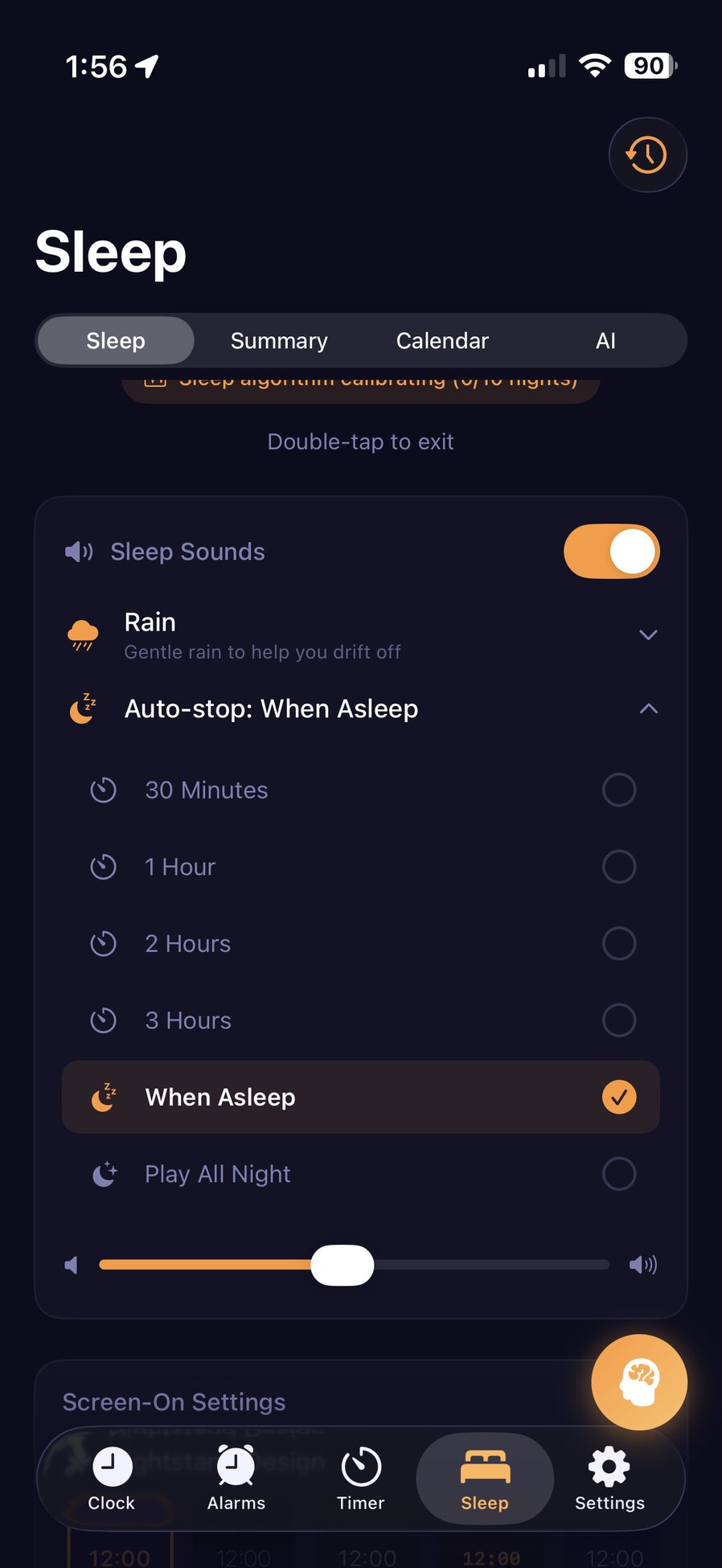
Which Auto-stop option should you choose?
Auto-stop decides when the sound ends. The list offers:
- When Asleep: the sound fades out once sleep tracking detects that you have fallen asleep. It only works while tracking is running.
- 30 Minutes, 1 Hour, 2 Hours or 3 Hours: a fixed timer, useful when you are not tracking or know roughly how long you take to drift off.
- Play All Night: the sound keeps going until you stop it, for bedrooms where the noise you are covering lasts all night.
When Asleep is a good default if you track: the sound is there while you settle and gone once you are under. If you tend to wake in the small hours and miss it, a longer timer or Play All Night may work better for you.
Using sleep sounds with tracking, Nightstand mode and Apple TV
With sleep tracking. Your chosen sound starts when you start a night or a nap, and this is the only way to use When Asleep. For your first tracked night, see how to track your sleep with just an iPhone.
With Nightstand mode only. To fall asleep to a sound beside a dim bedside clock without tracking, tap the Sleep Sounds button on the Sleep tab, pick a sound and tap Done. Nightstand mode starts with the sound playing. When Asleep is not offered there, because nothing is watching for sleep, so choose a timer or Play All Night. There is more on bedside setups in using your iPhone as a bedside clock.
Through an Apple TV. Tap the TV button at the bottom left of the Clock tab to open the Apple TV Nightstand screen, then start Screen Mirroring from Control Center. Turn on Sleep Sounds on that screen and, once the TV is connected, switch on Play sounds on TV to hear the sound through the TV speakers. Your iPhone and Apple TV need to be on the same Wi-Fi network.
Tips for better results
- Keep it quiet. Set the volume just loud enough to blur the noises that bother you, and leave the phone on the nightstand rather than next to your pillow.
- Prefer steady sounds. Even sounds like a fan, rain or brown noise cover other noise more smoothly than sounds with sudden peaks, such as thunder.
- Give a sound a fair trial. Any new sound takes some getting used to, so try one for several nights before switching.
- Compare nights. If you track, look at your reports for nights with and without a sound before deciding it helps.
- Charge overnight. A tracked night with sound runs for hours, so keep the phone on its charger.
Troubleshooting
- No sound when tracking starts: check that the Sleep Sounds switch is on, then check the volume slider in the card and your iPhone’s volume.
- When Asleep is missing: you opened the sound picker for Nightstand mode or Apple TV, where it is not offered. Use the Sleep Sounds card on the Sleep tab and start tracking.
- The sound stops sooner than you like: When Asleep fades the sound as soon as tracking detects sleep. If you want it back when you stir, choose a timer or Play All Night.
- The sound plays all night: check whether Auto-stop is set to Play All Night.
- There is no Play sounds on TV switch: it appears only once your iPhone is connected to the Apple TV. Make sure both are on the same Wi-Fi network and start Screen Mirroring again.
Where to start tonight
Pick one steady sound, such as rain or brown noise, set Auto-stop to When Asleep and keep the volume low. Start sleep tracking when you get into bed and let the sound fade on its own. After a week, compare a few nights and decide whether to keep the sound, change it or go without. And if you want the morning to be as gentle as the evening, read how Smart Wake rings when you are in lighter sleep.
Frequently asked questions
Can I play white noise all night on iPhone?
Yes. In WakeUp 2day, open the Sleep Sounds card on the Sleep tab, choose White Noise, Pink Noise or Brown Noise from the Noise category and set Auto-stop to Play All Night. The sound keeps going until you stop it. Keep the volume low and the phone away from your head, because loud sound for a whole night is not a good idea.
Do sleep sounds stop automatically when I fall asleep?
They can. Choose When Asleep under Auto-stop and start sleep tracking: once tracking detects that you are asleep, the sound fades out. When Asleep needs tracking, because tracking is how the app knows you have fallen asleep. If you are not tracking that night, pick a timer of 30 minutes to 3 hours instead.
Are the WakeUp 2day sleep sounds free?
Yes. All 36 sleep sounds, the Auto-stop options and the volume control are part of the free app, as are sleep tracking and alarms. WakeUp Pro adds things such as weekly sleep summaries, AI coaching and smart-home automations, but you do not need it to fall asleep to rain or brown noise.
Can sleep sounds play through Apple TV speakers?
Yes. Tap the TV button at the bottom left of the Clock tab to open the Apple TV Nightstand screen and start Screen Mirroring to your Apple TV from Control Center. Turn on Sleep Sounds on that screen, and once the TV is connected, switch on Play sounds on TV so the sound comes from the TV speakers.